Auto Layout
Auto Layout in WaveMaker is a layout system designed to manage component layouting and spacing without requiring direct CSS authoring. It provides developers with a visual layout workflow that closely aligns with the way designers typically create and reason about layouts. By abstracting common layout patterns into configurable properties within the editor, Auto Layout enables the creation of both simple and complex UI structures efficiently. It can be applied at both the page and section levels, ensuring consistent layout behavior across an application. The underlying layout model is loosely based on CSS3 Flexbox principles.
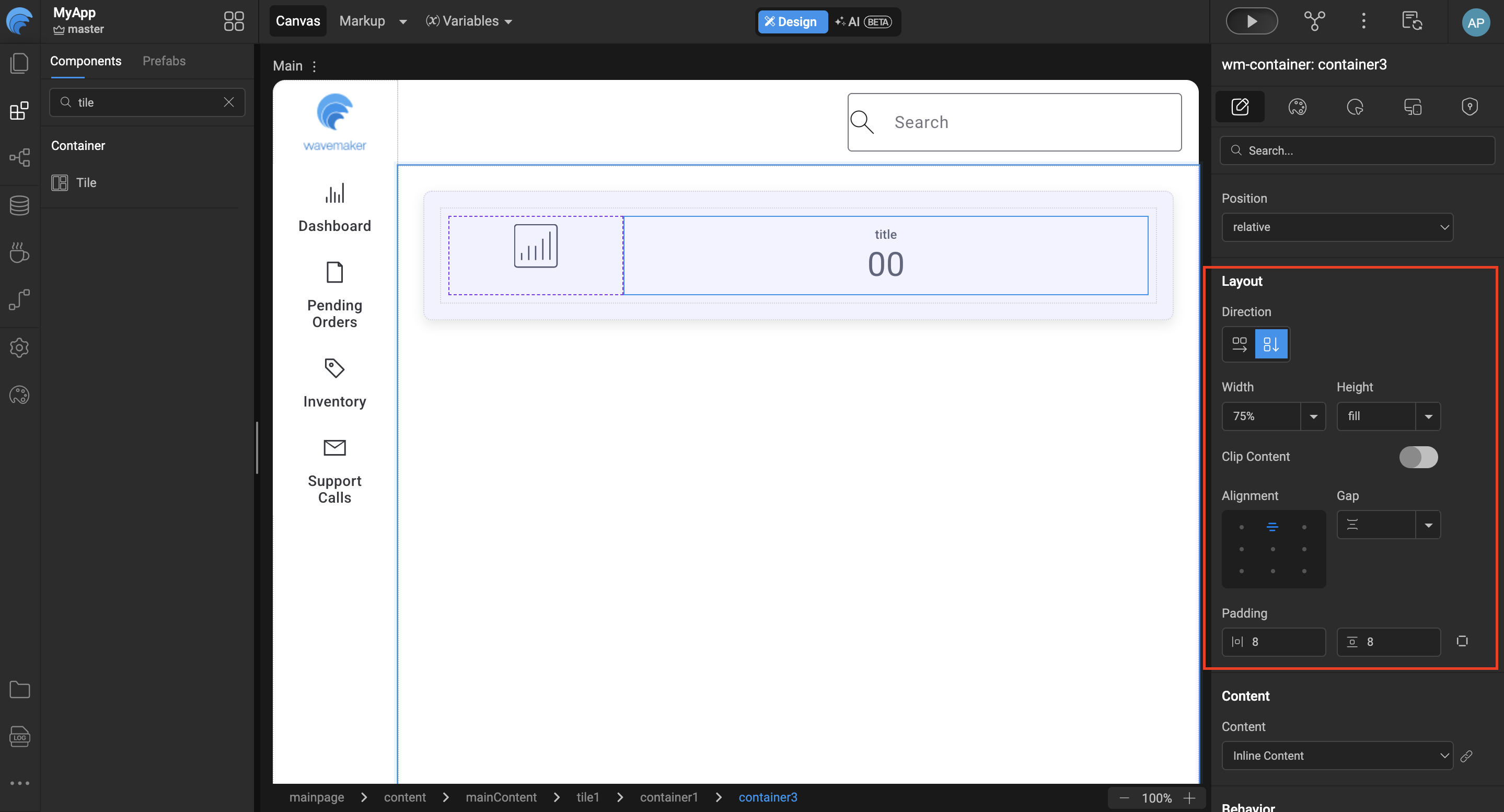
Let us go into details.
This feature can be used in two approaches:
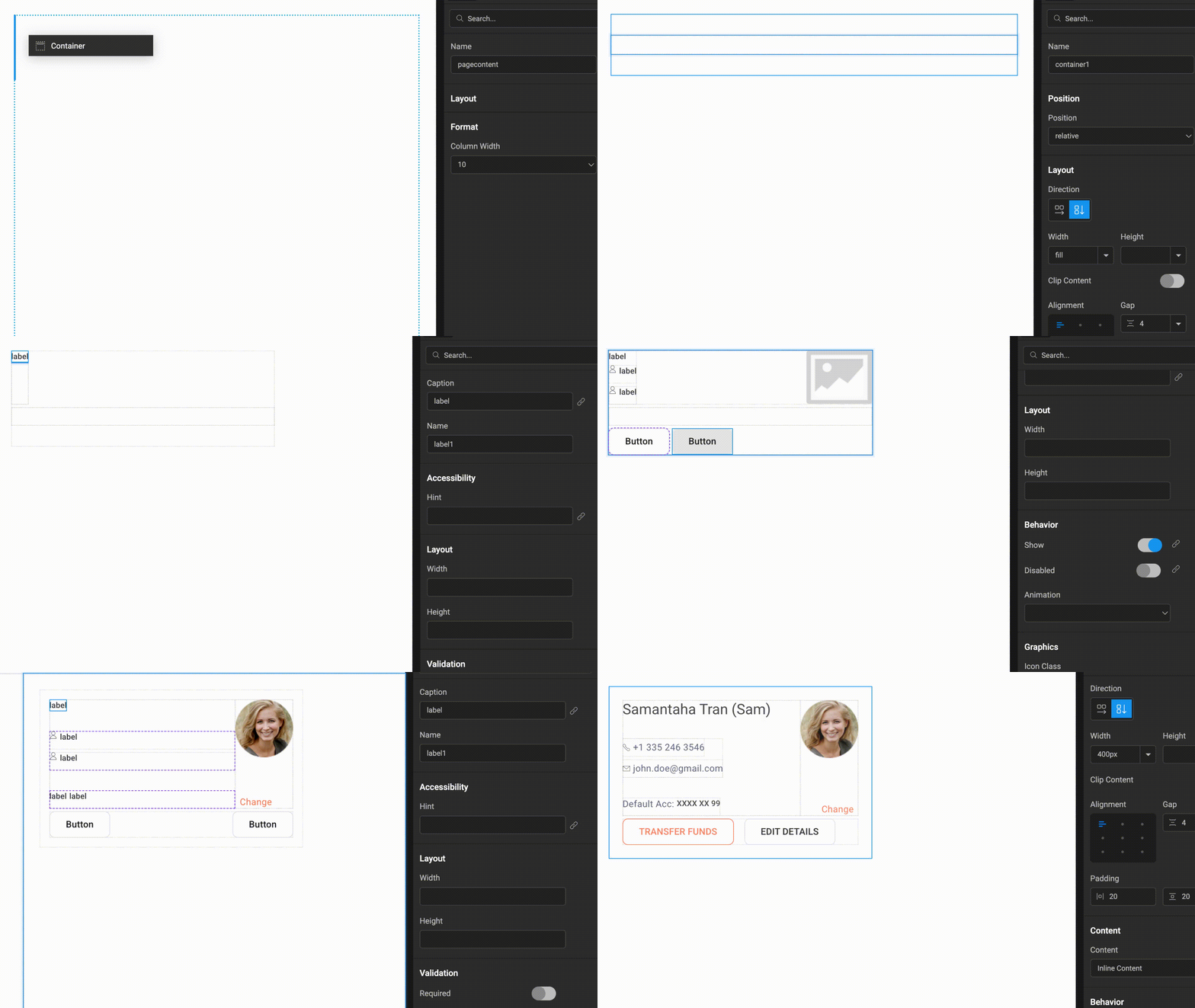
- Component first approach:
- Drop all your components onto the canvas without focusing on layout initially.
- Group what belongs together and multi-select siblings using Shift + click/tap.
- Right-click and choose “Add Auto Layout.”
- Fine-tune the layout settings inside the new Auto Layout container.
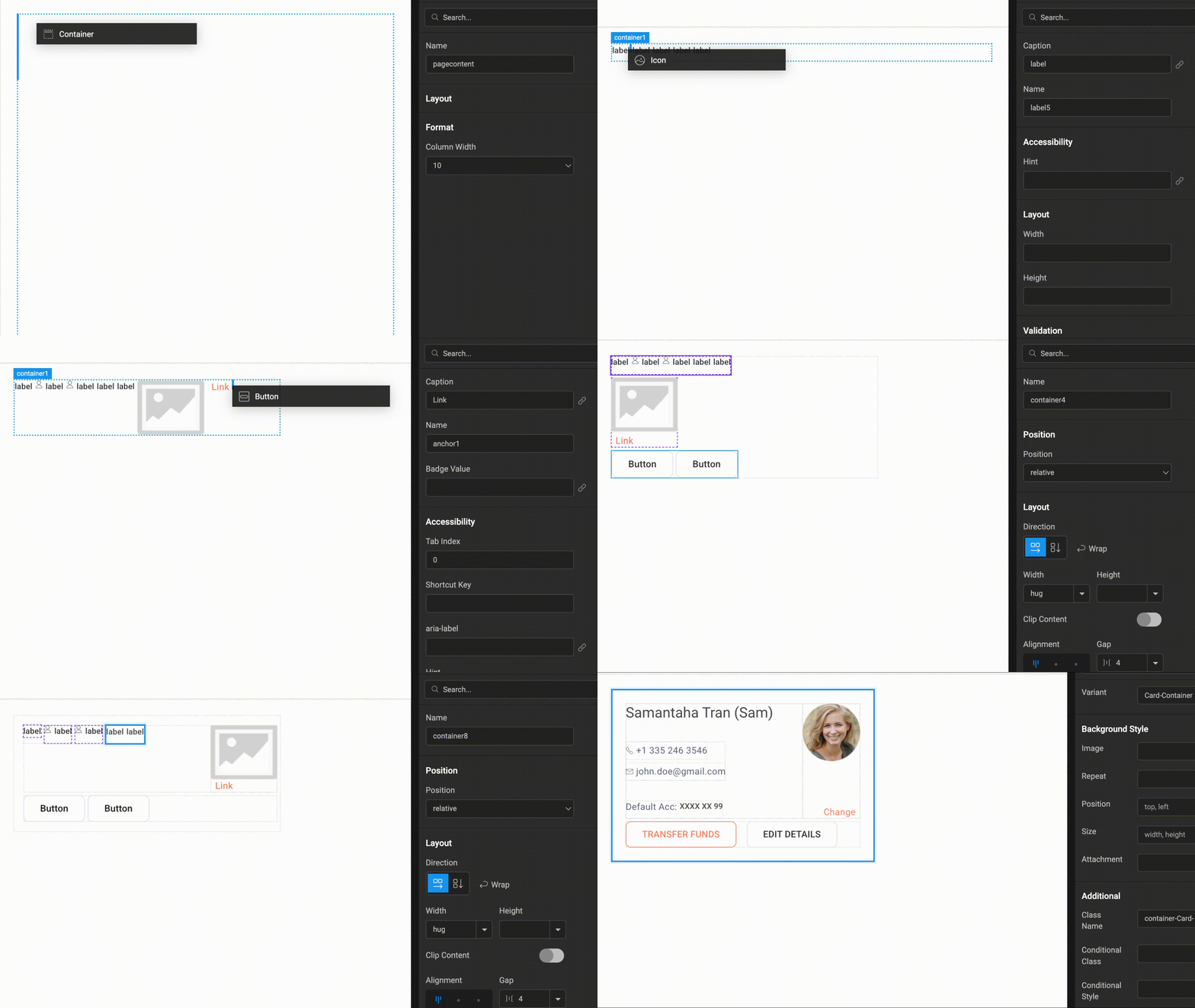
- Layout first approach:
- Plan your layout structure in advance.
- Create layout containers based on your design.
- Add child components (e.g., anchors, labels, images) into the containers.
- Assemble your page or sections using these structured layouts.
Auto layout is provided in the WaveMaker component called Container. As soon as we select a Container in the canvas and shift our focus to the properties panel on the right, we have a section called “Layout”. Within Layout we have the following subsection with their respective configuration UI controls
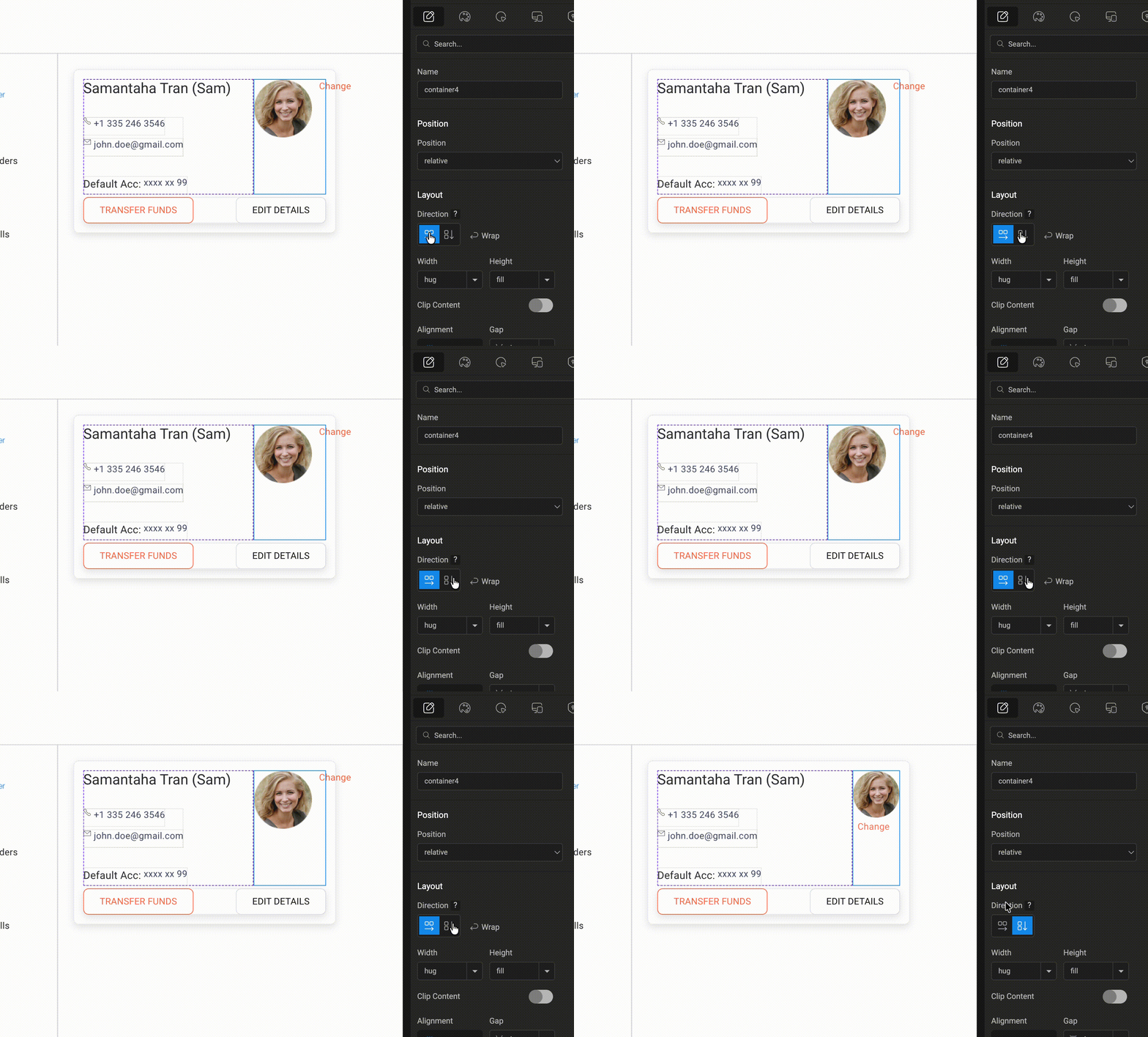
1. Direction
The Direction property in Auto Layout controls how components are arranged inside the container. By setting the direction to Row or Column, you can decide whether the elements appear side-by-side horizontally or stacked vertically. This helps in organising UI components efficiently and creating responsive layouts with minimal manual alignment.
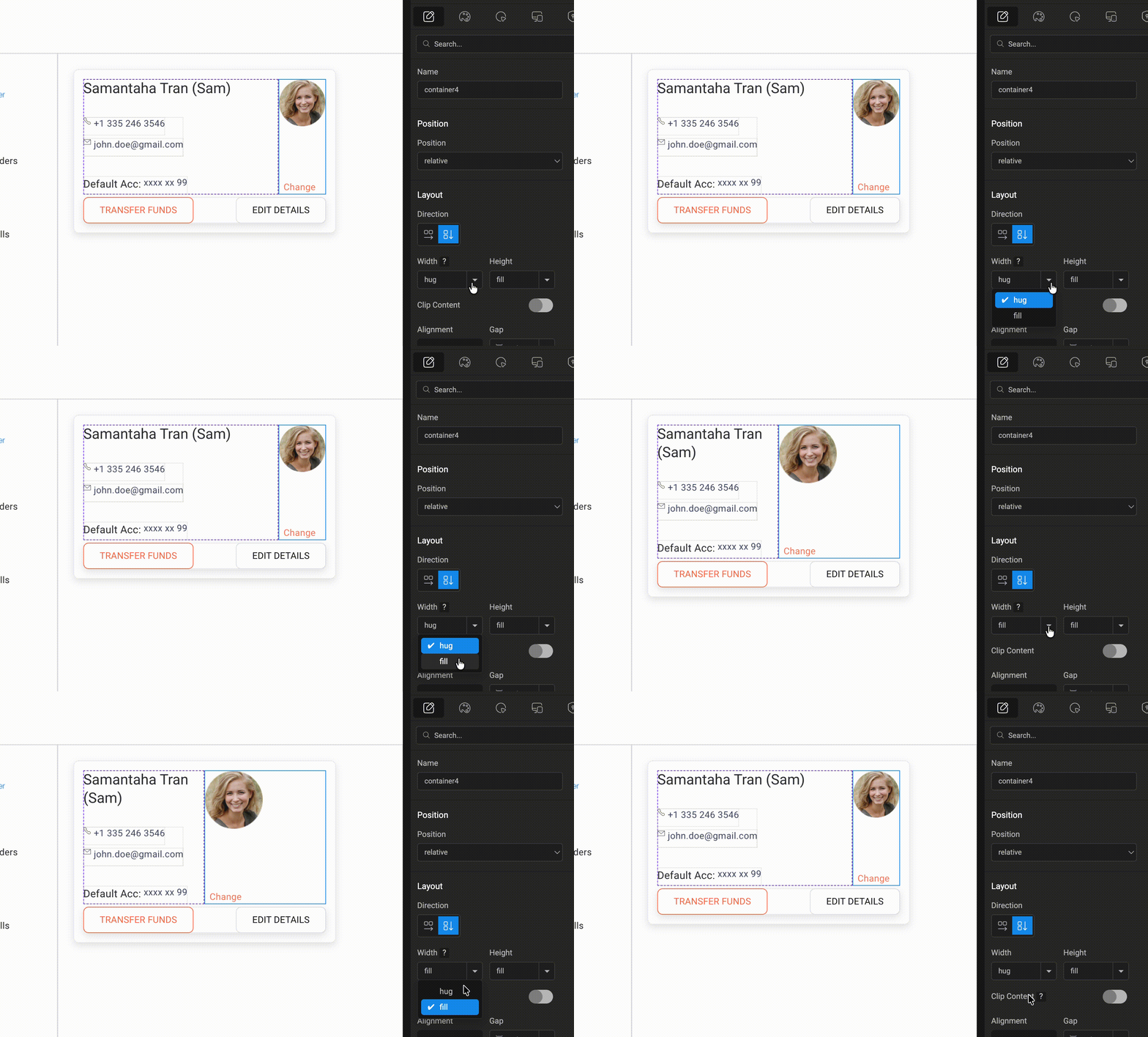
2. Width
The Width property determines how the container occupies space within its parent layout.When set to Fill, the container expands to take up all the available horizontal space.If set to Hug, the container adjusts its width based only on the size of its content, keeping the layout compact and neatly aligned.
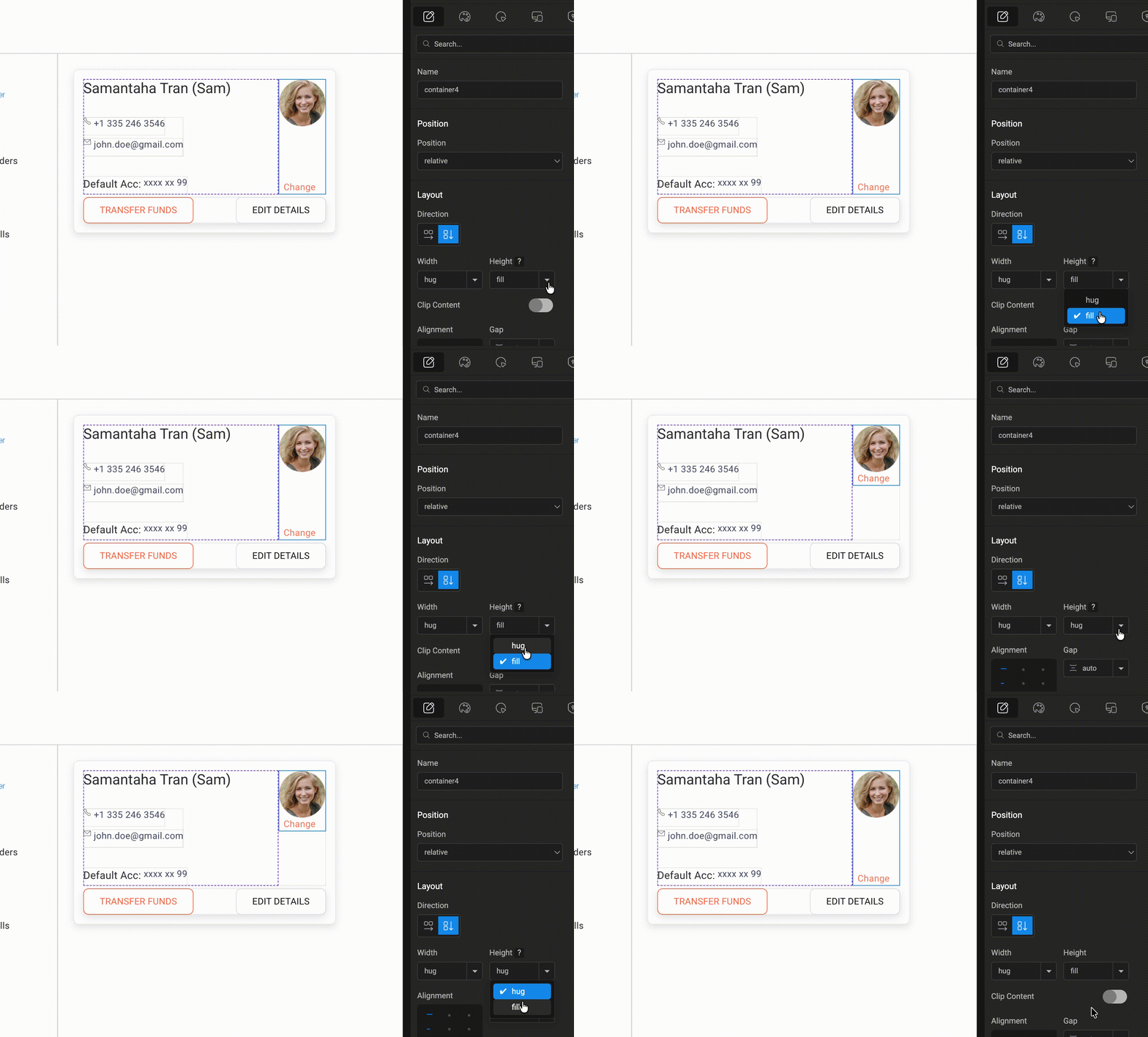
3. Height
The Height property controls how much vertical space the container occupies within its parent layout.When set to Fill, the container stretches to use the available vertical space. If set to Hug, the container automatically adjusts its height based on the size of its content, keeping the layout compact and well-structured.
4. Clip Content(If enabled it provides options for various types of scrolling)
- No Scrolling(default)
- Vertical
- Horizontal
- Both Directions
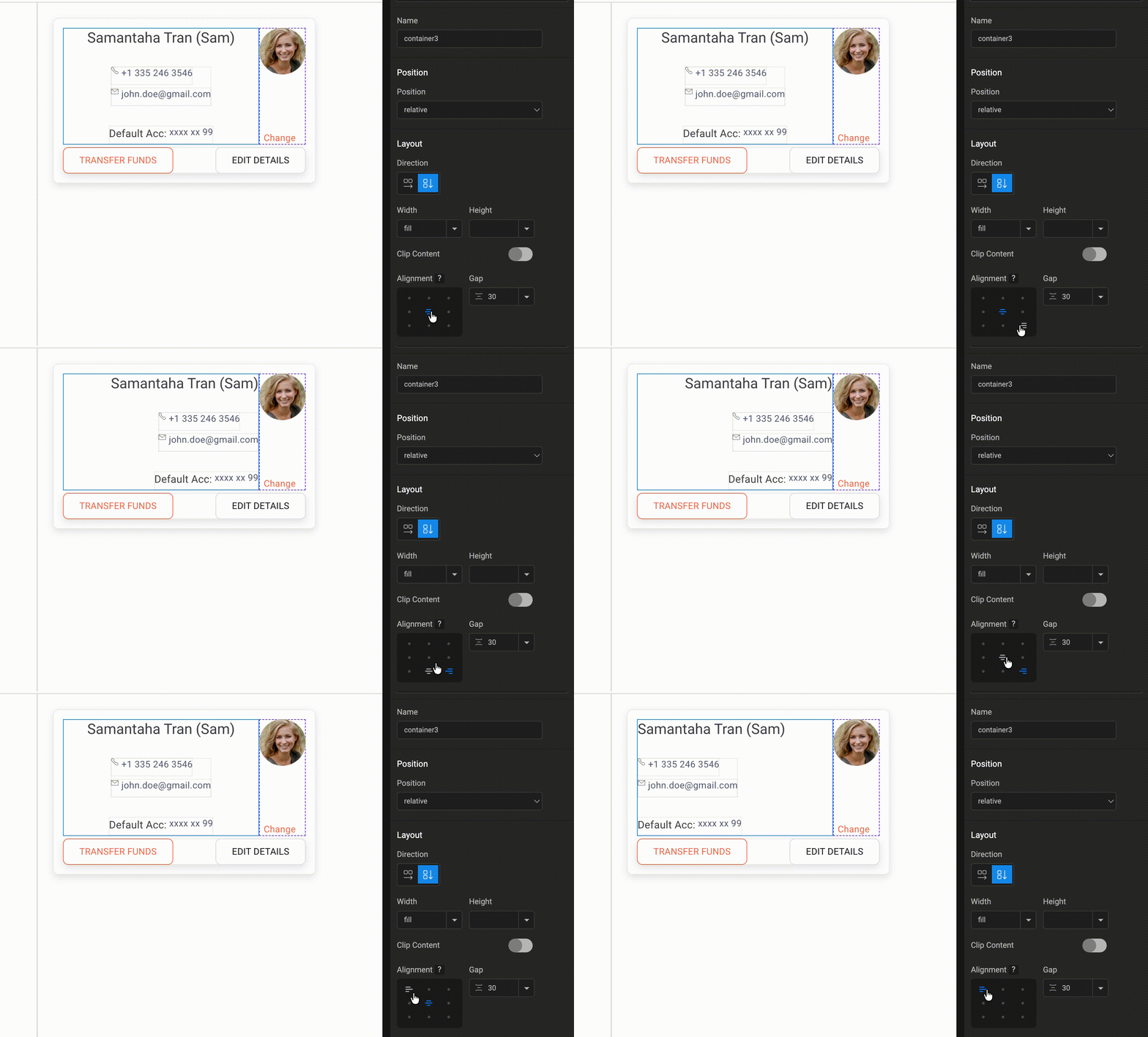
5. Alignment
The Alignment property controls how the child components are positioned inside the container.It provides nine alignment options — Top Left, Top Center, Top Right, Middle Left, Middle Center, Middle Right, Bottom Left, Bottom Center, and Bottom Right. By default, the alignment is set to Top Left, but you can choose any option depending on how you want the content to be positioned within the container.
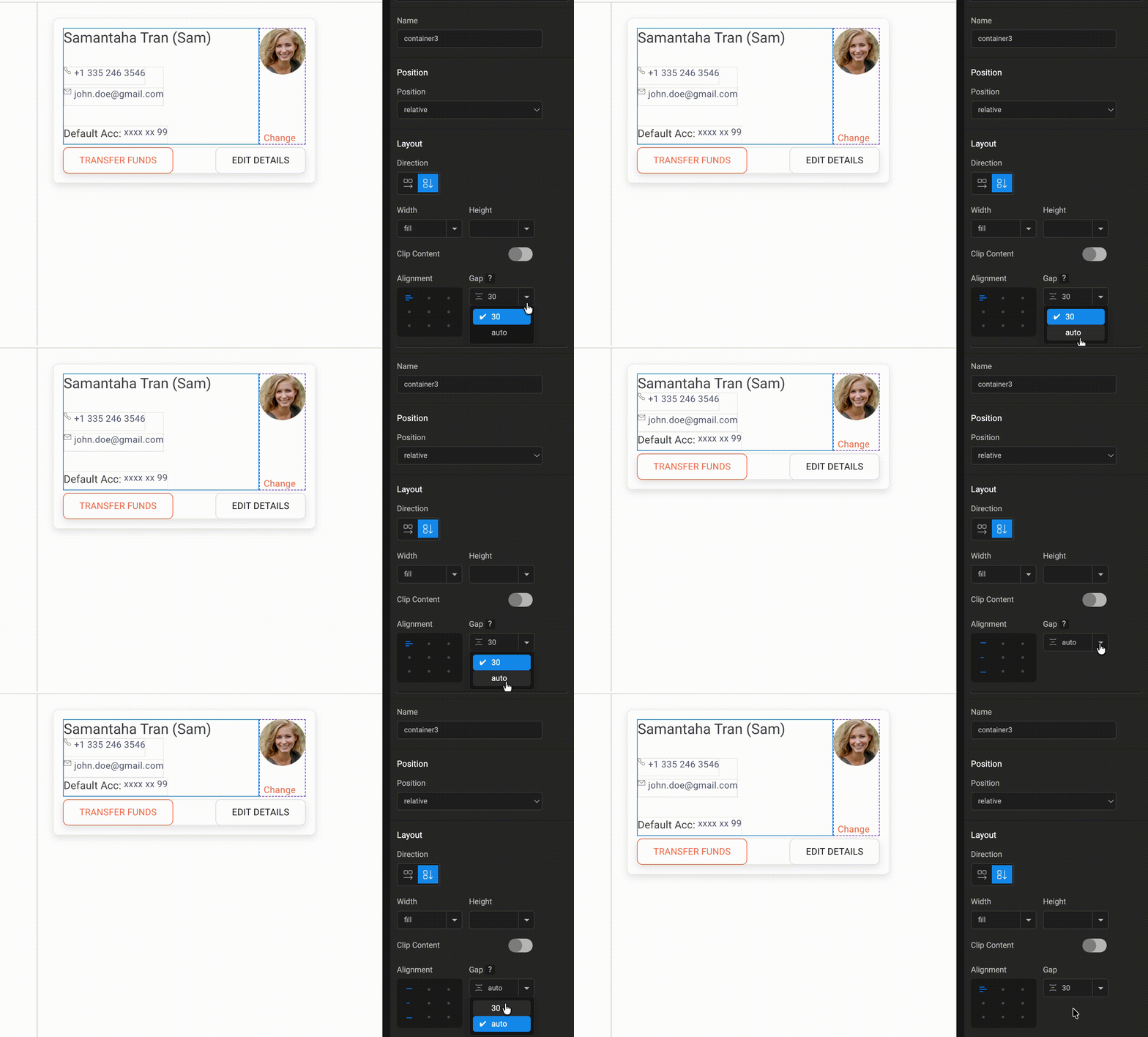
6. Gap(Accepts integer or Auto)
The Gap property controls the spacing between the child components inside the container. You can enter a specific integer value to define the spacing, or set it to Auto to let the layout automatically manage the spacing between components.
7. Padding(Accepts horizontal/Vertical or individual padding)
The Padding property controls the inner spacing between the container’s boundary and its content.You can set padding for Left-Right as horizontal padding and Top-Bottom as vertical padding to maintain consistent spacing inside the container.
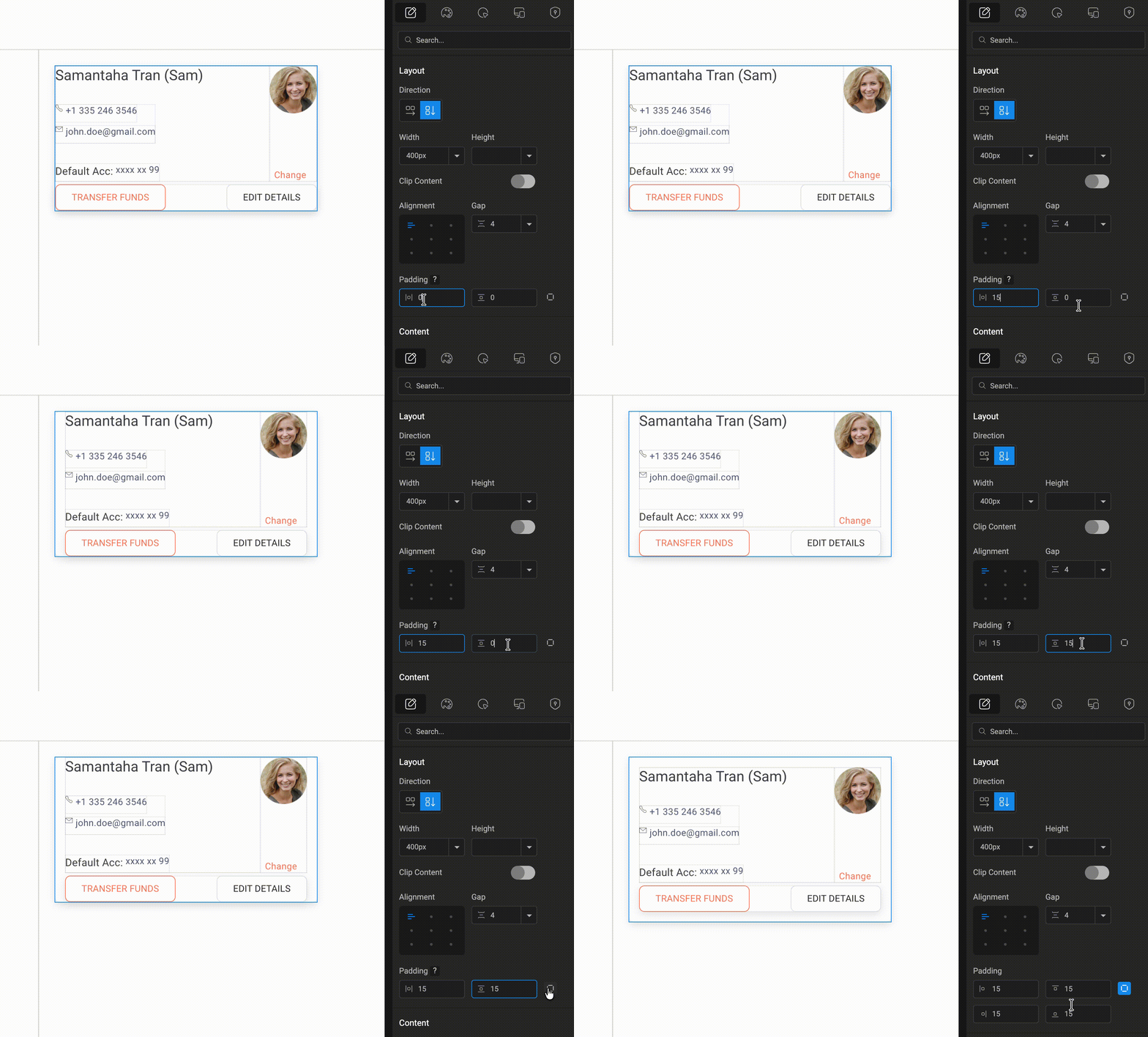
For a complete understanding of how Auto Layout works in practice, watch the Auto Layout video, where the concepts and controls are demonstrated step by step.
