Search - Basic Usage
WaveMaker allows you to add search capability via the search widget. Following are the steps in using the same. We will use the search widget to search the --> and display the department id and name.


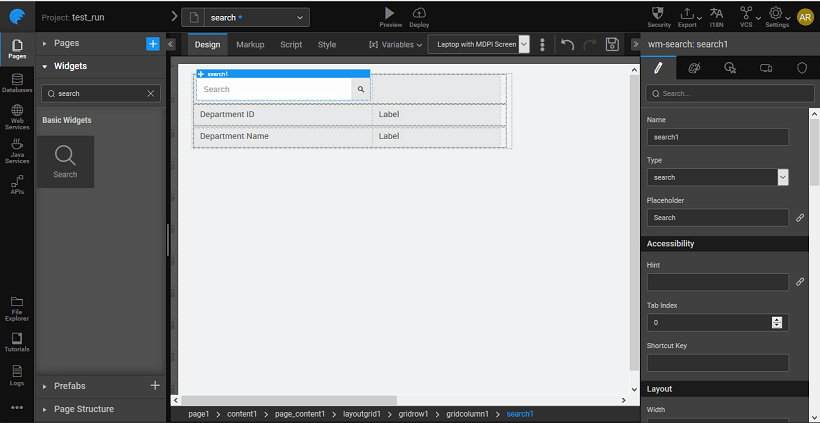
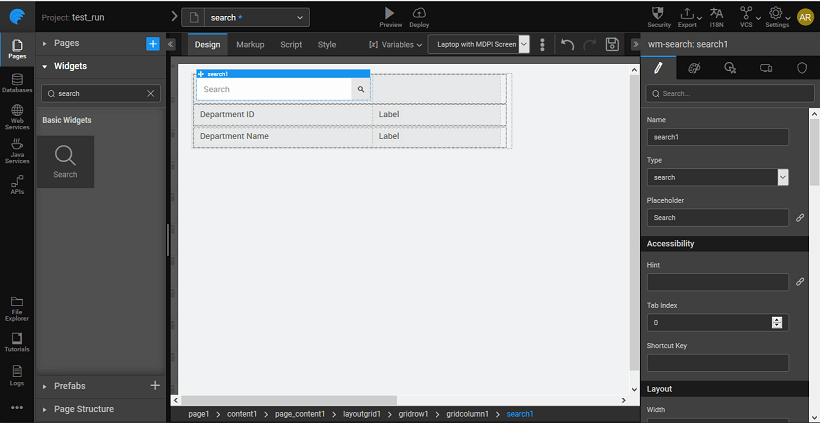
- Drag and drop a search, and four label widgets on a page. We have used the grid layout here.
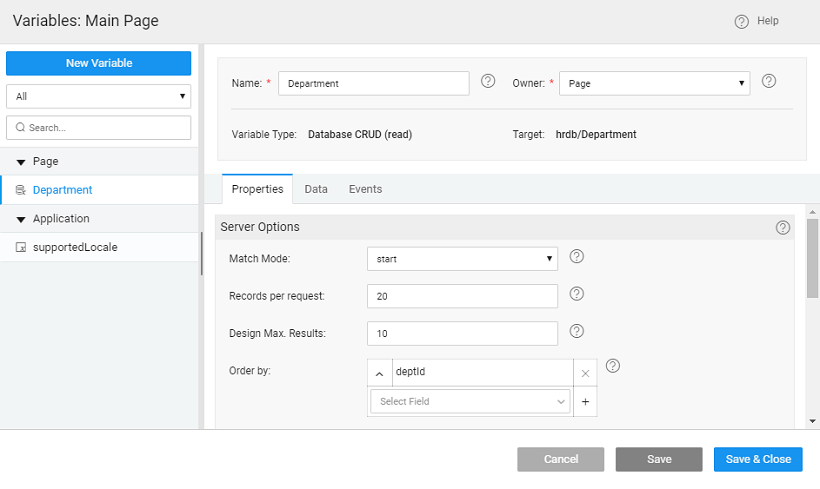
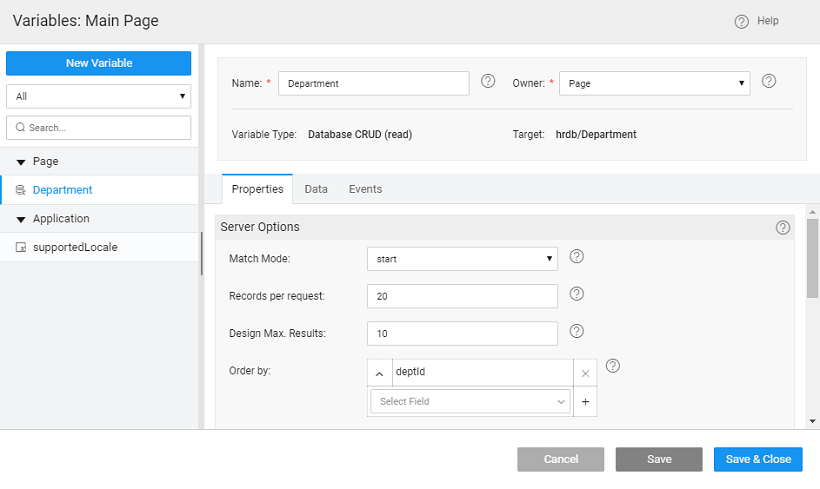
- -->. Create a Variable based on the database CRUD APIs auto-generated when the database is imported.
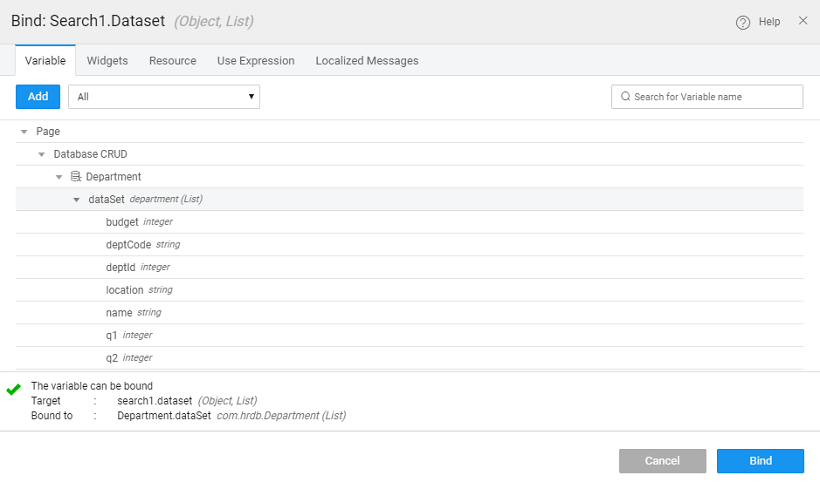
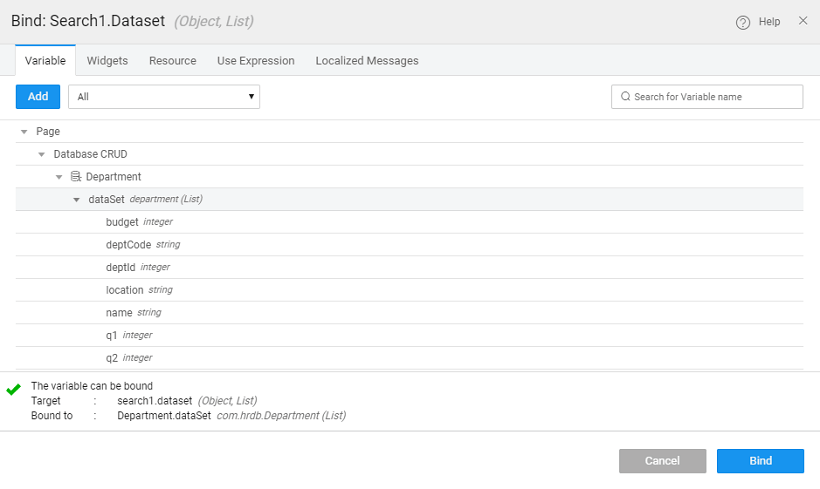
- Bind the Value dataset property of the search widget to the department variable created in the previuos step.
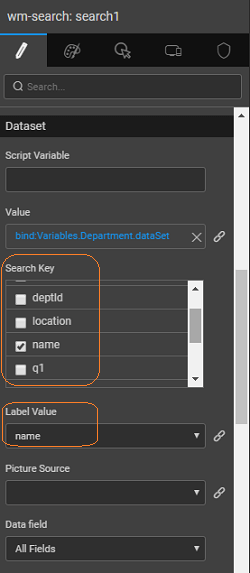
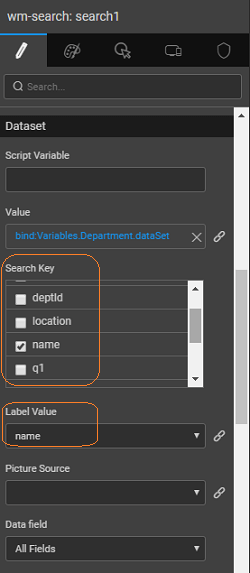
- Set the Search key and Label Value properties to the column name you want to search by, in this case, name. Note: The Search Key, Label Value, and Image Source are bindable. For example, the Label Value can be bound in this case to 'deptcode+name', using the expression option from the binding dialog.
You can capture the result of the Search widget in two ways:
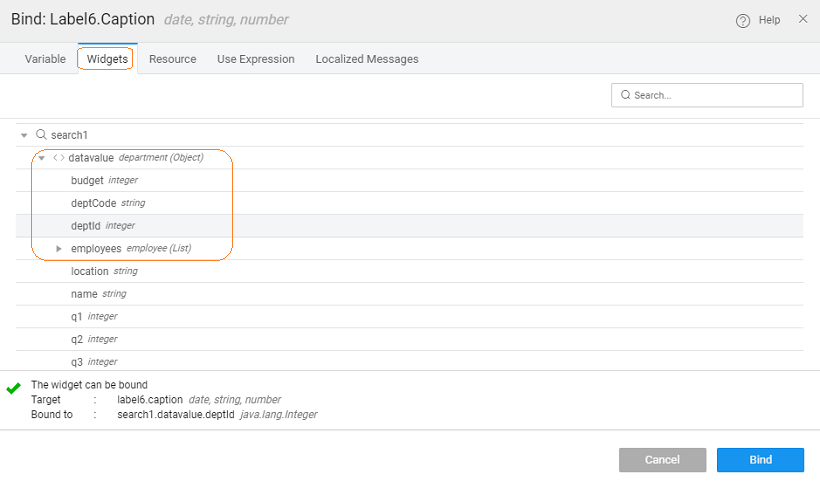
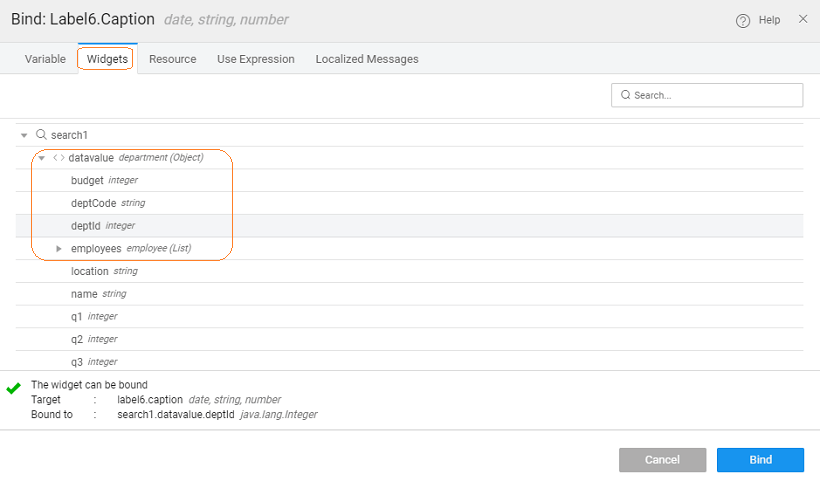
- Using the outbound properties of data value - which contains the dataset returned by the search to be bound to the list or Data Table, query - search text entered by the user and show.
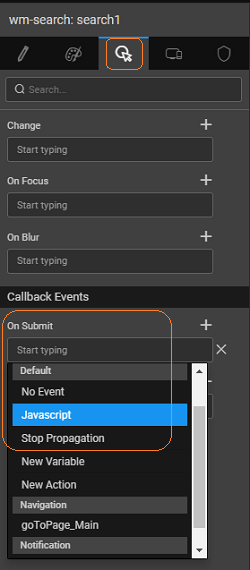
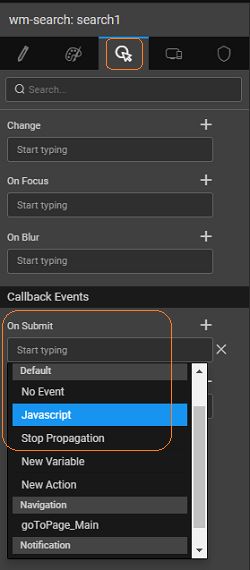
- Using JavaScript - From the event tab, set the onSubmit event to JavaScript.
 In the Script the following function will be created The selected item can be accessed by '$event.data.item' property as follows: Here we have set the labels to the department name and id returned by the search widget. NOTE: The label names might vary in your project.
Page.search1Submit = function($event, widget) {
        Page.Widgets.label3.caption = $event.data.item.deptid;
        Page.Widgets.label4.caption = $event.data.item.name;
    };
- Save and run the application.
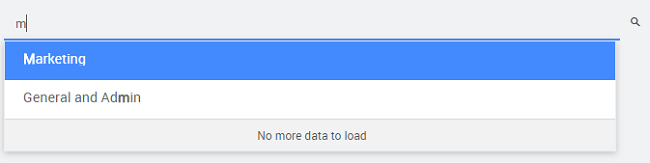
- The page will display the search widget along with the labels.