Docker Upgrade
Docker Upgrade
-
Docker upgrade is required when you have docker version below 24.0.6 .
-
User needs to upgrade docker if ssh-user doesn't have root/sudo privileges in Ubuntu OS StudioWorkspaceInstance/AppDeploymentInstance and if ssh-user have or doesn't have root/sudo privileges in RHEL OS StudioWorkspaceInstance/AppDeploymentInstance.
-
Make sure Hibernate and passivate user containers and application containers from launchpad.
-
So follow the steps below when you added StudioWorkspaceInstance/AppDeploymentInstance.
Docker Upgrade in Ubuntu
- Stop the current Docker.
  service docker.socket stop
  service docker stop
- Update the apt package index and install packages to allow apt to use a repository over HTTPS:
     sudo apt-get update
     sudo apt-get install ca-certificates curl gnupg lsb-release
- Add Docker’s official GPG key:
     sudo mkdir -p /etc/apt/keyrings
    curl -fsSL https://download.docker.com/linux/ubuntu/gpg | sudo gpg --dearmor -o /etc/apt/keyrings/docker.gpg
- Use the following command to set up the repository:
  echo \
  "deb [arch=$(dpkg --print-architecture) signed-by=/etc/apt/keyrings/docker.gpg] https://download.docker.com/linux/ubuntu \
  $(lsb_release -cs) stable" | sudo tee /etc/apt/sources.list.d/docker.list > /dev/null
-
To upgrade and install the latest version of Docker, run the following command to list all the available versions:
  sudo apt-get update
  apt-cache madison docker-ce
apt-cache madison docker-ce-cli -
Run the following command to install a specific version of Docker.
  sudo apt-get install docker-ce=<VERSION_STRING> docker-ce-cli=<VERSION_STRING> containerd.io
example: sudo apt-get install docker-ce=5:24.0.6-1~ubuntu.20.04~focal docker-ce-cli=5:24.0.6-1~ubuntu.20.04~focal containerd.io -y -
Example in ubuntu 22.x
example: sudo apt-get install docker-ce=5:24.0.6-1~ubuntu.22.04~jammy docker-ce-cli=5:24.0.6-1~ubuntu.22.04~jammy containerd.io -y
Upgrade Docker using WaveMaker Script
-
To Upgrade Docker to the latest version, the user need to use their own approach or WaveMaker provides a script to install.
-
Run the following command to install the Docker.
sudo bash wme-utility.sh --docker-upgrade
-
-
If the given platform user does not have privileged access, then provide the below permissions for the given user on StudioWorkspace Instance/AppDeployment Instance.
-
The user should be able to execute the following commands as a privileged user:
- Add user to the Docker group.
- Make the user an owner of the Docker systemd process.
- Data directory should be owned by the user.
- Permission to manage Docker, service, systemctl daemon-reload, iptable.
    usermod -aG docker <user>
    mkdir -p /etc/systemd/system/docker.service.d/
    chown -R <user>:<user> /etc/systemd/system/docker.service.d
    chown -R <user>:<user> /data
    echo "%<user> ALL=NOPASSWD: /bin/systemctl restart docker,/bin/systemctl daemon-reload,/sbin/iptables" >> /etc/sudoers.d/<sudoers-file-name>
Docker Upgrade in RHEL
Upgrade or Install the latest version of Docker.
- Stop the current Docker.
  service docker.socket stop
  service docker stop
- List the current Docker package version.
yum list docker-ce
- Remove the current Docker Engine.
  rpm -e <installed-package>
  example: rpm -e docker-ce.x86_64 docker-ce-rootless-extras.x86_64
- Install container-selinux for RHEL 7 version only
yum install http://mirror.centos.org/centos/7/extras/x86_64/Packages/container-selinux-2.107-1.el7_6.noarch.rpm -y
-
Install the latest version of Docker
- To Upgrade Docker in RHEL 8 use the following commands
  yum-config-manager --add-repo https://download.docker.com/linux/centos/docker-ce.repo
  wget https://download.docker.com/linux/centos/8/x86_64/stable/Packages/docker-ce-cli-24.0.6-1.el8.x86_64.rpm
  wget https://download.docker.com/linux/centos/8/x86_64/stable/Packages/containerd.io-1.6.18-3.1.el8.x86_64.rpm
  wget https://download.docker.com/linux/centos/8/x86_64/stable/Packages/docker-ce-24.0.6-1.el8.x86_64.rpm
  sudo yum install docker-ce-cli-24.0.6-1.el8.x86_64.rpm -y
  sudo yum install containerd.io-1.6.18-3.1.el8.x86_64.rpm -y
sudo yum install docker-ce-24.0.6-1.el8.x86_64.rpm -y- Install prerequisites to install Docker in RHEL7
   yum-config-manager --add-repo https://download.docker.com/linux/centos/docker-ce.repo
   wget http://mirror.centos.org/centos/7/extras/x86_64/Packages/slirp4netns-0.4.3-4.el7_8.x86_64.rpm
   wget http://mirror.centos.org/centos/7/extras/x86_64/Packages/fuse3-devel-3.6.1-4.el7.x86_64.rpm
   wget http://mirror.centos.org/centos/7/extras/x86_64/Packages/fuse3-libs-3.6.1-4.el7.x86_64.rpm
   wget http://mirror.centos.org/centos/7/extras/x86_64/Packages/fuse-overlayfs-0.7.2-6.el7_8.x86_64.rpm
   sudo yum install slirp4netns-0.4.3-4.el7_8.x86_64.rpm -y
   sudo yum install fuse3-devel-3.6.1-4.el7.x86_64.rpm -y
   sudo yum install fuse3-libs-3.6.1-4.el7.x86_64.rpm -y
sudo yum install fuse-overlayfs-0.7.2-6.el7_8.x86_64.rpm -y- To Upgrade Docker in RHEL 7 use the following commands
  wget https://download.docker.com/linux/centos/7/x86_64/stable/Packages/docker-ce-cli-24.0.6-1.el7.x86_64.rpm
  wget https://download.docker.com/linux/centos/7/x86_64/stable/Packages/containerd.io-1.6.18-3.1.el7.x86_64.rpm
  wget https://download.docker.com/linux/centos/7/x86_64/stable/Packages/docker-ce-24.0.6-1.el7.x86_64.rpm
  sudo yum install docker-ce-cli-24.0.6-1.el7.x86_64.rpm -y
  sudo yum install containerd.io-1.6.18-3.1.el7.x86_64.rpm -y
  sudo yum install docker-ce-24.0.6-1.el7.x86_64.rpm -y
    systemctl enable docker
    systemctl start docker
    docker --version
- You can choose to install Docker in any other way as per your company policy.
- Above commands depict one of them.
- Make sure to do the activities below after the Docker installation.
-
If the given platform user doesn't have privileged access, then provide the below permissions for the given user on StudioWorkspace Instance / AppDeployment Instance.
-
The user should be able to execute the following commands as a privileged user:
- Add user to the Docker group.
- Make the user an owner of the Docker system process.
- Data directory should be owned by the user.
- Permission to manage Docker, service, systemctl daemon-reload, iptable.
    usermod -aG docker <user>
    chown -R <user>:<user> /usr/lib/systemd/system
    chown -R <user>:<user> /data
    echo "%<user> ALL=NOPASSWD: /bin/systemctl restart docker,/bin/systemctl daemon-reload,/usr/sbin/iptables" >> /etc/sudoers.d/<sudoers-file-name>
Make sure to Run below command after installation of docker completes to have WaveMaker docker configuration to your installed docker
-
For Ubuntu
bash docker_configure.sh -
For RHEL
bash docker_setup_rhel.sh
Excute the above configuration files only after giving the permissions if it in the case of non-root execution., which the steps are given in the next page.
Studio Workspace/AppDeploy Instances Sync and Patch using Launchpad
-
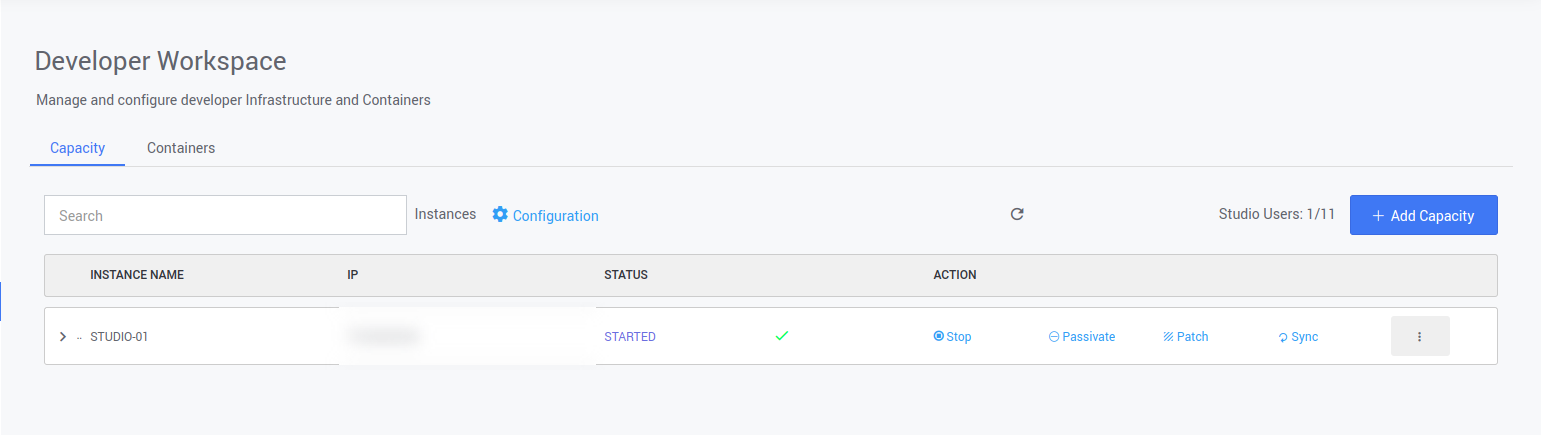
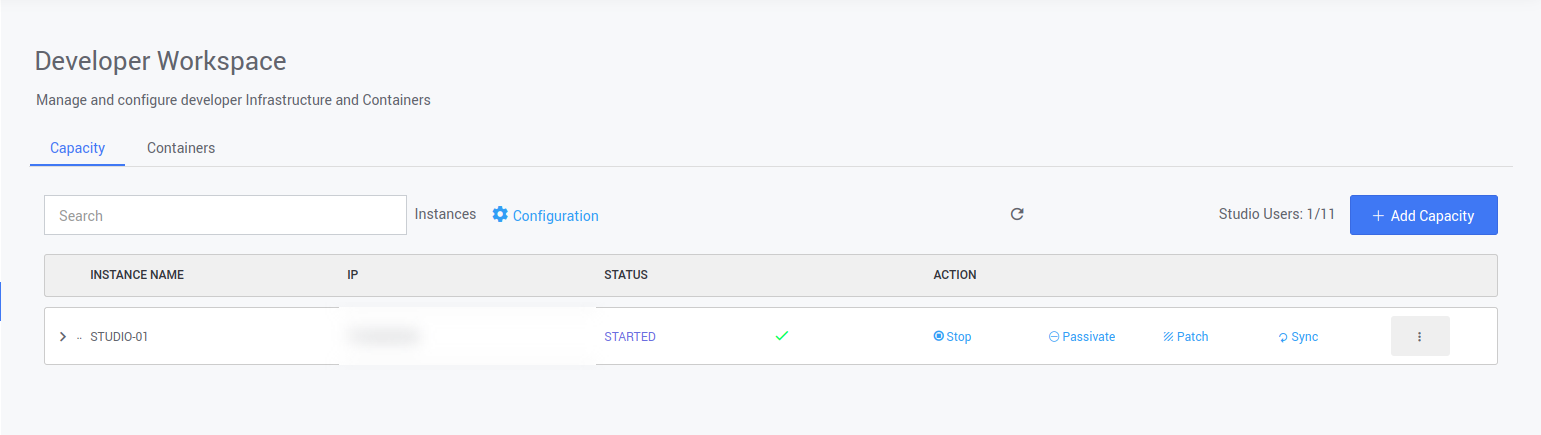
You can also apply the Sync or Patch using the Launchpad. To Apply, go to the Launchpad and Navigate to the Developer Workspace or App Deployements.
-
On the Capacity, you can see the Workspace/AppDeploy Instance details. On the Icons Shown, you can find the patch and the sync option.